








Starting a new job often means receiving access to several workplace accounts, including email, project management tools, shared documents and internal systems. Remembering different passwords for each account can quickly become difficult.
Some employees reuse familiar passwords or save login details in notes to make things easier. However, these habits can put workplace accounts at risk.
A password manager for work provides a more organised way to create, store and access unique passwords. It also helps employees manage their credentials without keeping them in spreadsheets, notebooks or unsecured messages. Before using one, check which password manager your employer approves and understand how workplace access should be managed.
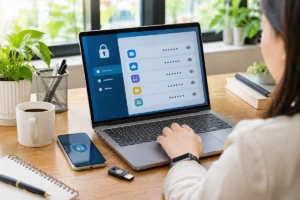
Choose an Employer-Approved Password Manager
Before choosing a password manager for work, ask your manager or IT team which tool you should use. Some organisations provide their own password management system, while others have approved applications employees can access.
A workplace password manager may include features such as:
Secure storage for work account passwords.
Password generation for new accounts.
Multi-factor authentication.
Controlled sharing of approved credentials.
Access management when employees change roles or leave.
Use the official installation instructions provided by your organisation. Avoid downloading applications from unfamiliar websites or creating a separate personal vault for company credentials without permission.
If you are taking over an existing position, ask the IT team or account owner how access should be transferred. Do not assume that an old spreadsheet or a colleague’s saved passwords can be copied into your own account.
Protect Your Password Manager With Strong Security
A password manager for work stores access to multiple workplace accounts, so protecting the vault itself is important. Anyone who gains unauthorised access may also gain access to the credentials stored inside it.
Follow your organisation’s sign-in requirements and use multi-factor authentication (MFA) whenever it is supported and required. MFA adds another verification step, such as an authenticator app, security key or other approved method.
You should also:
Use a strong, unique master password if your system requires one.
Never reuse your master password for another account.
Lock the password manager when leaving your workstation.
Keep your computer and password manager updated.
Avoid accessing your work vault on unauthorised devices.
Some password managers also support passkeys, which allow you to sign in without entering a traditional password. Use them when your employer and the relevant service support and approve them.
Ask your IT team how account recovery works before you need it. Find out what to do if you lose your device, forget your master password or cannot complete the normal verification process.
Create and Save Unique Passwords for Work Accounts
One of the main benefits of a password manager is that you do not need to remember a different password for every service.
For each permitted work account, use the password manager’s generator to create a strong, unique password. Save it under the correct account name so you can identify it easily later.
For example, a new employee may receive access to:
| Work Account | Purpose |
|---|---|
| Work email | Sending and receiving business messages |
| Project management system | Managing tasks and deadlines |
| Document storage | Accessing workplace files |
| Expenses system | Submitting work-related expenses |
| Internal staff portal | Viewing company information |
Each account should have its own credentials unless the organisation uses an approved passwordless sign-in method.
When saving a login, check that it belongs to the correct website or application. Before using autofill, verify the website address, especially if you arrived through an unexpected email or message. A fake login page may look similar to the genuine service.
Avoid Sharing Your Personal Work Passwords
Having a password manager does not mean you should share your login details with colleagues.
For example, imagine a new employee is asked by a colleague to provide access to the company expenses system. Instead of sending their own password through email or chat, they should direct the colleague to the account owner or IT team.
The organisation may have an approved way to share access through a shared vault or individual user permissions.
Whenever possible, employees should have their own accounts. This helps the organisation identify who accessed a system and makes it easier to remove access when someone’s responsibilities change.
Only share credentials when your organisation explicitly permits it and provides an approved method.
Keep Passwords and Account Access Organised
Work responsibilities change, and employees may receive access to additional systems or no longer need certain accounts.
Keep your saved credentials organised so you can identify which accounts belong to your role. If a password changes, update the correct entry in the approved password manager.
Follow these practices:
Remove duplicate or outdated saved entries when appropriate.
Check that saved website addresses are correct.
Report suspicious login notifications to IT.
Review access when your responsibilities change.
Never include actual passwords in handover documents or support tickets.
If a device containing your work vault is lost, report it immediately through your organisation’s IT support process. Do not wait until someone notices unusual activity.
Your IT team can advise whether the device needs to be remotely disabled, whether sessions should be revoked and whether any affected passwords need to be changed.
Handle Password Manager Access During Employee Handover
When an employee leaves a position or moves to another department, access to workplace systems may need to change.
The manager or IT team should review which accounts the employee can access and remove permissions that are no longer required.
For example, an employee transferring from administration to another department may no longer need access to the previous team’s shared systems. The organisation should update those permissions rather than simply allowing old access to remain active.
During a handover:
Identify the work accounts connected to the role.
Notify the appropriate account owners about access changes.
Transfer responsibilities through approved procedures.
Remove access that is no longer required.
Never transfer personal master passwords or recovery secrets to another employee.
This keeps account ownership clear and reduces the risk of former employees retaining access to workplace information.
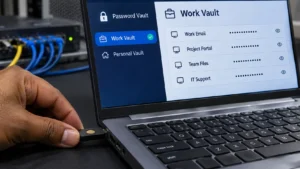
Make Secure Password Management Part of Your Daily Work
Using a password manager for work accounts can make everyday tasks easier while helping protect company information. However, the tool is only one part of good account security.
Follow your employer’s IT policies, use unique credentials, protect your password manager and ask for assistance whenever you are unsure about sharing or transferring access.
For additional guidance, read the Australian Cyber Security Centre’s advice on Securing Accounts and Identities. It explains the importance of unique passwords, password managers, multi-factor authentication and controlled access to workplace accounts.
If you are interested in technology-related careers, explore our IT Jobs in Brisbane guide to learn more about opportunities in the information technology sector.