








SUMIF adds values from records that meet one condition. It is useful for a simple category total when the criteria range and the numeric range refer to the correct corresponding rows.
Use the original fictional exercise below in an authorised practice workbook. Check the result manually before applying the method to important work, and follow the documentation for the spreadsheet application and regional settings you use.
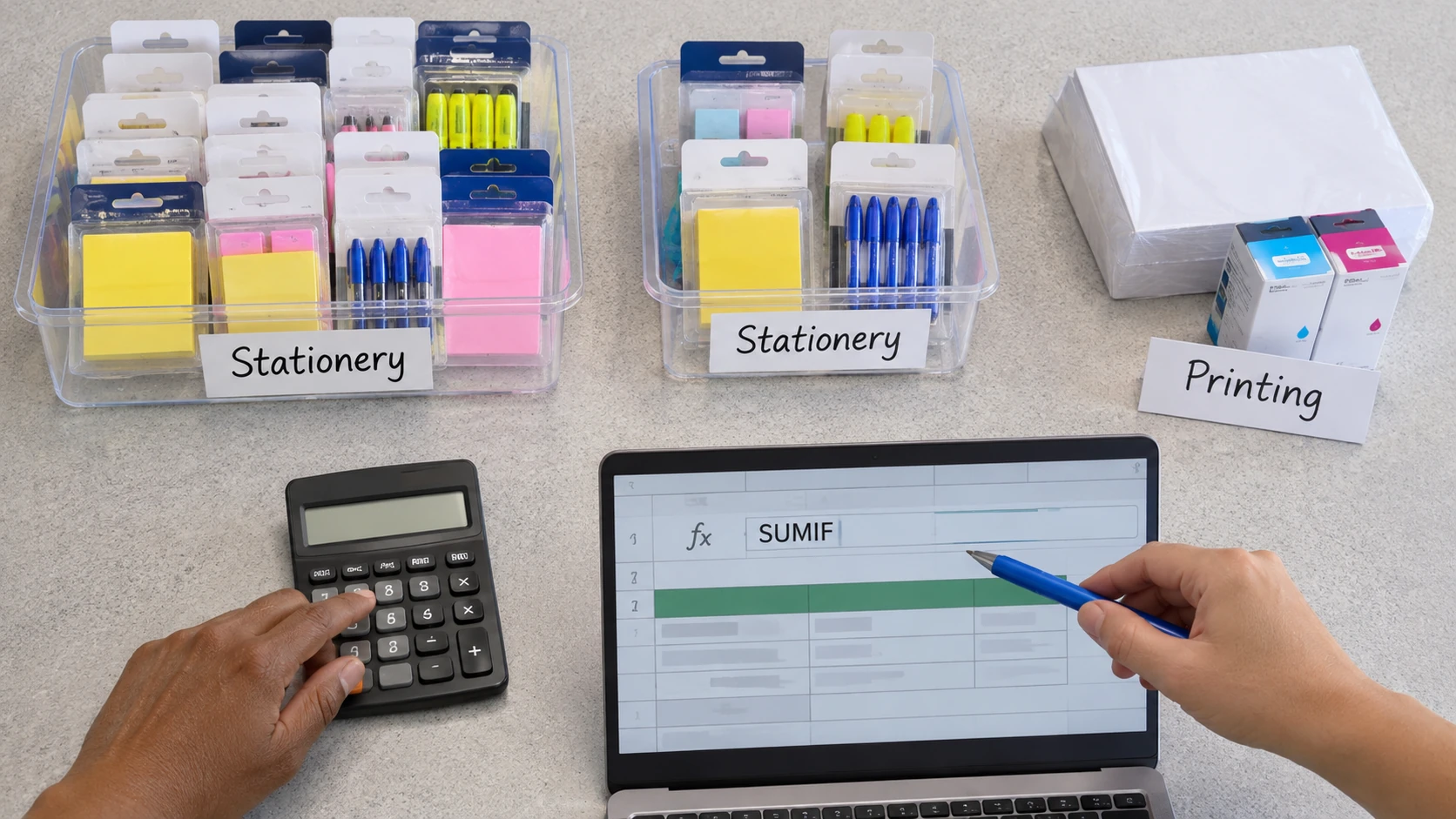
Prepare the complete practice data
Put the heading Category in A1 and Quantity in B1. Enter these invented rows:
- Row 2: Stationery in A2 and 12 in B2.
- Row 3: Printing in A3 and 8 in B3.
- Row 4: Stationery in A4 and 5 in B4.
- Row 5: Printing in A5 and 10 in B5.
The quantities are ordinary fictional counts, not prices or payroll data. Keep each category aligned with its quantity and confirm that B2:B5 contains numeric values rather than text that only looks numeric.
Read the formula before using it
For a version using English function names and comma argument separators, the example is:
=SUMIF(A2:A5,”Stationery”,B2:B5)
The first argument identifies the cells to check. The second is the condition. The third identifies the corresponding numbers to add. Some regional settings use a different argument separator; use the application’s documented syntax.
Microsoft’s SUMIF documentation explains the function and its arguments. This article’s dataset and calculation are original examples, not copied documentation data.
Check the answer independently
The two Stationery records contain 12 and 5, so the expected answer is 17. Printing contains 8 and 10, so its expected total is 18. Together, the two category totals equal the overall quantity of 35. When presenting this as a skills example, use our practical workplace skills guide to explain the question, formula and independent check; naming a spreadsheet function alone does not show that you can validate its result.
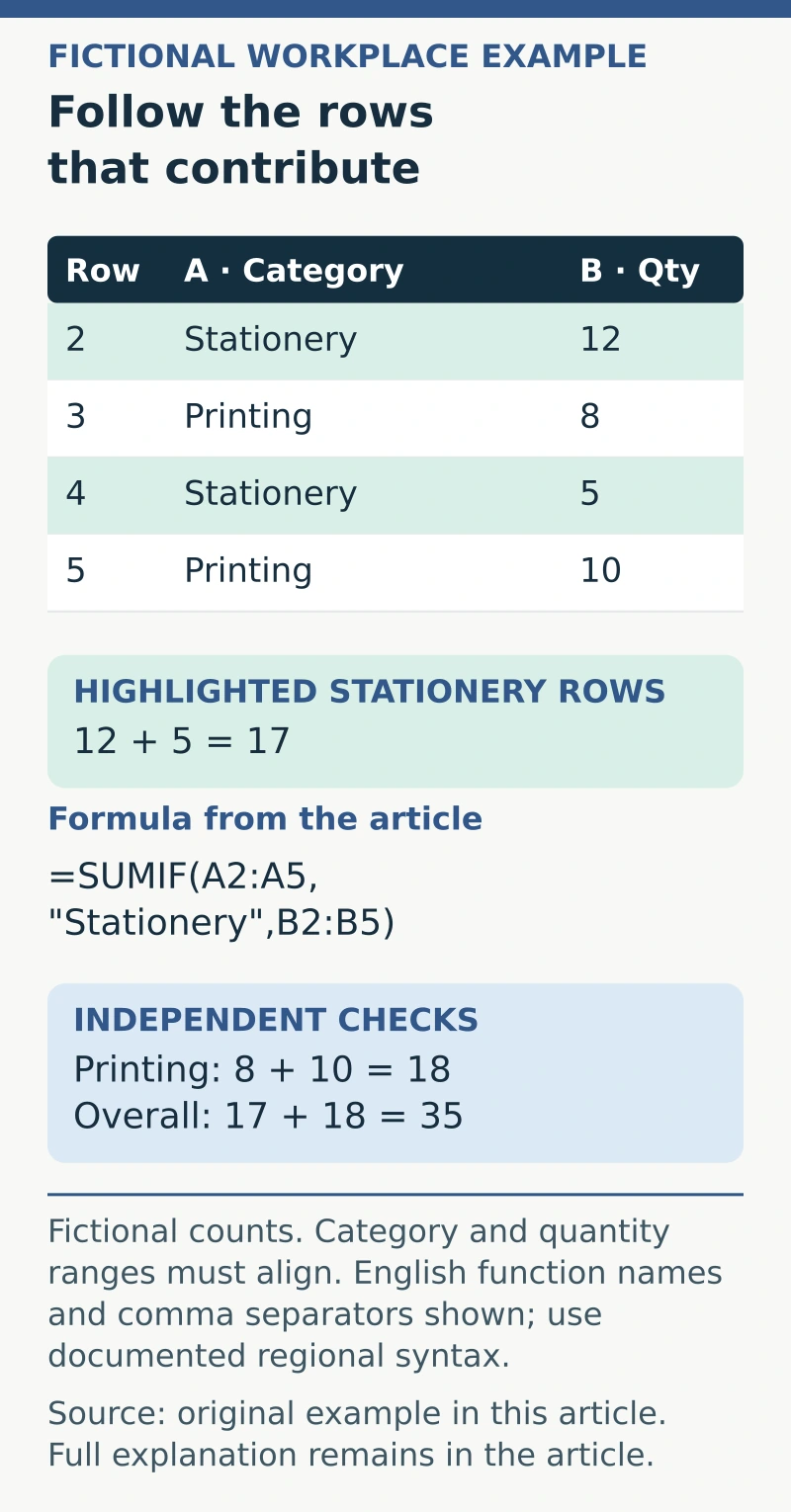
Confirm those results using the source rows, not only another formula with the same potentially incorrect range. The check should be capable of exposing a missing or misaligned record.
If the result is unexpected, inspect the category spelling, spaces, numeric values and selected ranges. Do not adjust an input simply to make the result equal the number you expected.
Use a formula-check record
Capture:
- Question: the category and quantity being totalled.
- Source: the complete authorised dataset.
- Criteria: the exact value or condition intended.
- Ranges: matching record boundaries for categories and quantities.
- Expected result: independent calculation for the practice case.
- Exception: missing, inconsistent or non-numeric entries requiring review.
- Maintenance: how added records will be included and checked.
Do not assume new rows outside the referenced range become part of the total. Check the workbook’s actual range or table design after data changes.
Keep the total’s meaning clear
A category total measures what the source field defines. It does not prove the underlying quantities are correct, establish stock eligibility or authorise a purchase.
If the question needs several conditions, check whether SUMIFS suits the task; its argument order differs from SUMIF. For another kind of summary, choose an appropriate documented method and verify it separately. A reliable SUMIF calculation combines a clear question, aligned ranges and an independent check, leaving the user able to explain why the result is correct.