








A spreadsheet lookup connects information using a defined key, such as an approved record identifier. Before choosing a formula, check that the key is meaningful, consistent and sufficiently unique for the question being answered.
Matching a name is not automatically the same as matching a person or transaction. Several records can legitimately share a name, while a mistyped identifier can return an incorrect or missing result.

Prepare a exact-match exercise
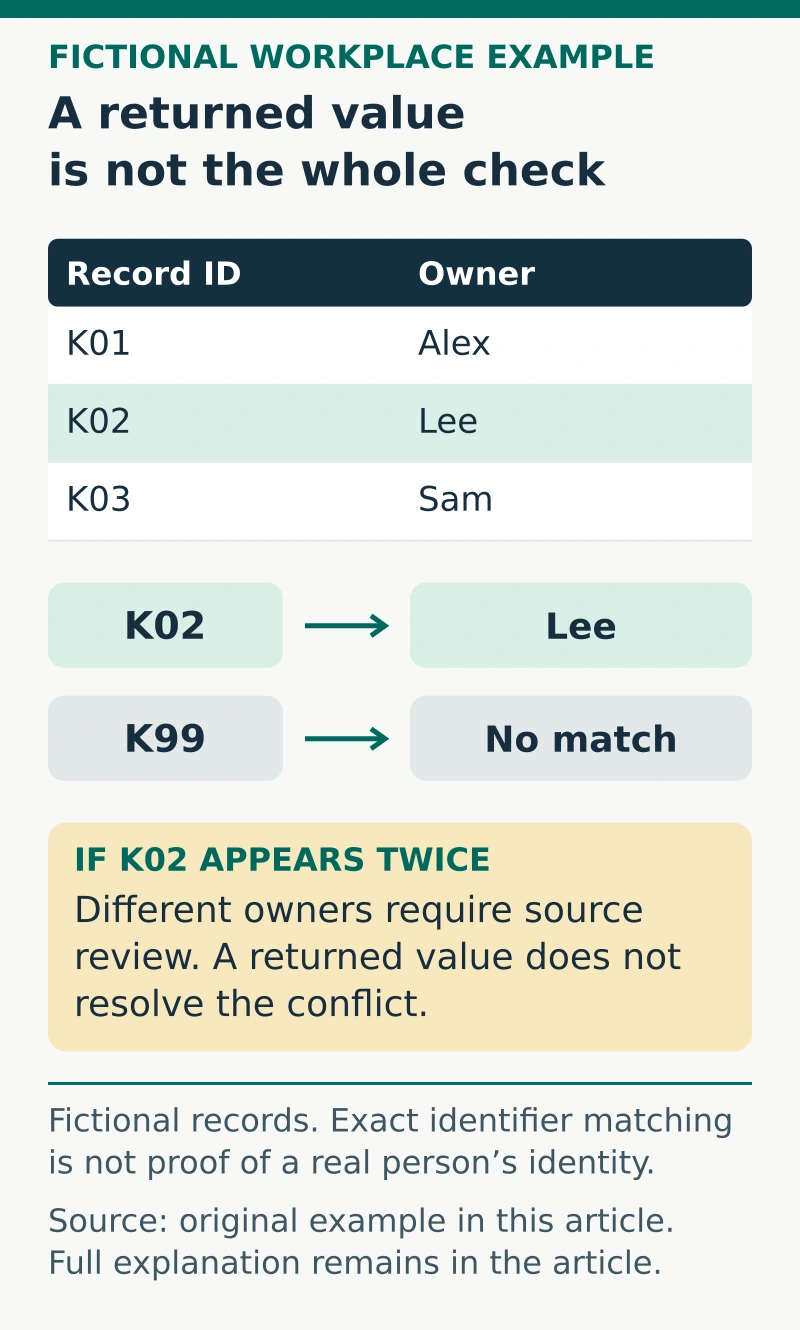
In an authorised practice file, use the headings Record ID in A1 and Owner in B1. Enter fictional records K01 and Alex in row 2, K02 and Lee in row 3, and K03 and Sam in row 4.
Put K02 in D2 as the identifier to find. The intended answer is Lee, because the source record with identifier K02 has that owner.
Keep the source associations intact. The exercise checks an exact identifier match, not a similarity search or proof of someone’s real identity.
Use a supported documented method
Where the application and version support XLOOKUP, an English-function example with comma argument separators is:
=XLOOKUP(D2,A2:A4,B2:B4,”No match”,0)
This checks the lookup range for the identifier, returns the corresponding owner and uses an explicit exact-match mode. Regional settings may require another separator.
Microsoft’s XLOOKUP guidance explains the function and version considerations. Do not assume every spreadsheet or older workbook environment supports it. Use an approved supported method for the actual file.
Test missing and duplicated identifiers
Change the practice lookup to K99. The expected result is the defined “No match” message, because that identifier is absent from the fictional source. Testing the exceptions can provide a stronger example for the records work in our administration jobs guide than showing only a successful match; use fictional records when demonstrating the method.
Now consider a source containing K02 twice with different owners. A returned value alone does not settle which record is correct. With the formula above, XLOOKUP returns the first matching record because no alternative search mode is specified. Check duplicate keys and resolve the source issue before relying on that result.
Do not hide every error with an empty result. A blank can conceal missing data or an unexpected formula problem that the user needs to investigate.
Use a lookup-check record
Document:
- Purpose: the information to connect and why.
- Key: identifier meaning, source and uniqueness requirement.
- Type: consistent text or numeric handling, including significant leading zeros.
- Match: exact or another explicitly justified method.
- Return: correct corresponding field and range.
- Exceptions: missing identifiers, duplicate keys and inconsistent values.
- Verification: comparison with known source records.
Keep private information in the approved system and restrict access appropriately. A lookup formula does not authorise linking datasets that should not be combined.
Check changes and results in context
Test known matches, a missing key and relevant exceptions before relying on the result. Confirm that new source rows are included under the actual workbook design and that formula references still align.
If an identifier or owner changes, retain the appropriate source and decision history rather than using a formula result to overwrite records without review. A useful lookup makes the relationship explainable, including the cases where no reliable match can yet be made.