






Multi-factor authentication uses two or more different types of evidence to verify identity, such as a password and an approved security key or authenticator. At work, prepare the setup through the approved account and support process so that normal sign-in, a changed device and a suspicious prompt all have a clear response.
This guide does not recommend bypassing authentication or using a personal method the organisation has not approved. The actual system owner determines permitted options.
Confirm the legitimate setup route
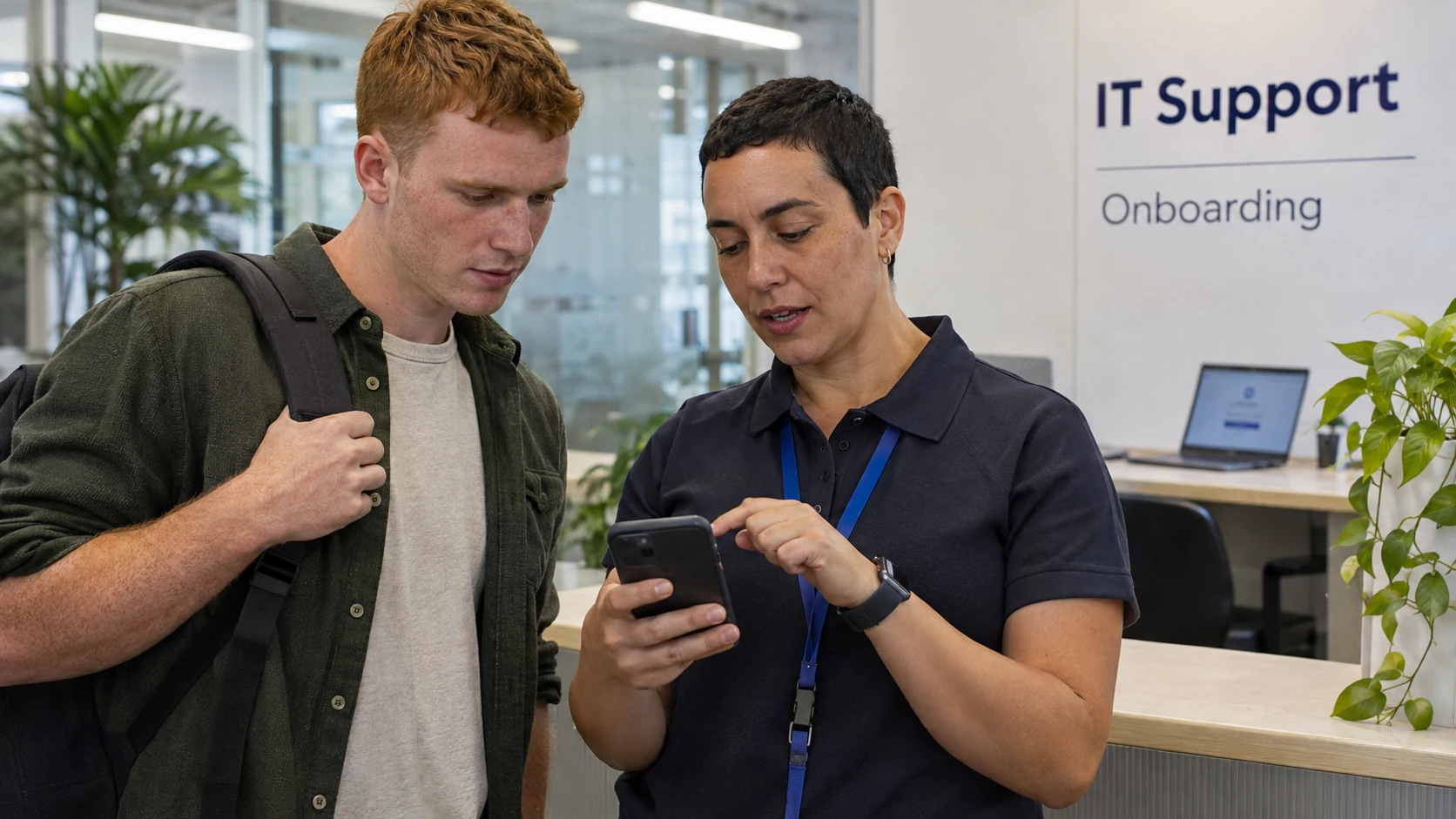
Use the employer’s verified instructions and genuine service location. Ask which authentication method is required or allowed and whether a work-managed device or other approved arrangement is needed. Our IT roles guide can help distinguish a user’s setup questions from work requiring an authorised support or systems role; confirm the employer’s nominated setup contact before proceeding.
Australian cyber-security guidance on securing accounts and identities explains multi-factor authentication and related account controls. Check the current workplace requirements rather than assuming every service uses the same method.
Do not set up an account from a link in an unexpected message without verification. An instruction that appears urgent should still follow the approved process.
Use a readiness checklist
Confirm:
- Account: correct work identity and legitimate service.
- Method: required or approved authentication arrangement.
- Device: ownership, permitted use and relevant support.
- Normal sign-in: what a legitimate request should follow.
- Unexpected prompt: reporting route and action under the actual procedure.
- Recovery: approved alternative if the normal method becomes unavailable.
- Change: how to plan a replacement device or role transition.
Keep codes, recovery secrets and device-unlock details out of the checklist. A completion record should not become another place where someone can obtain access information.
A fictional unexpected prompt
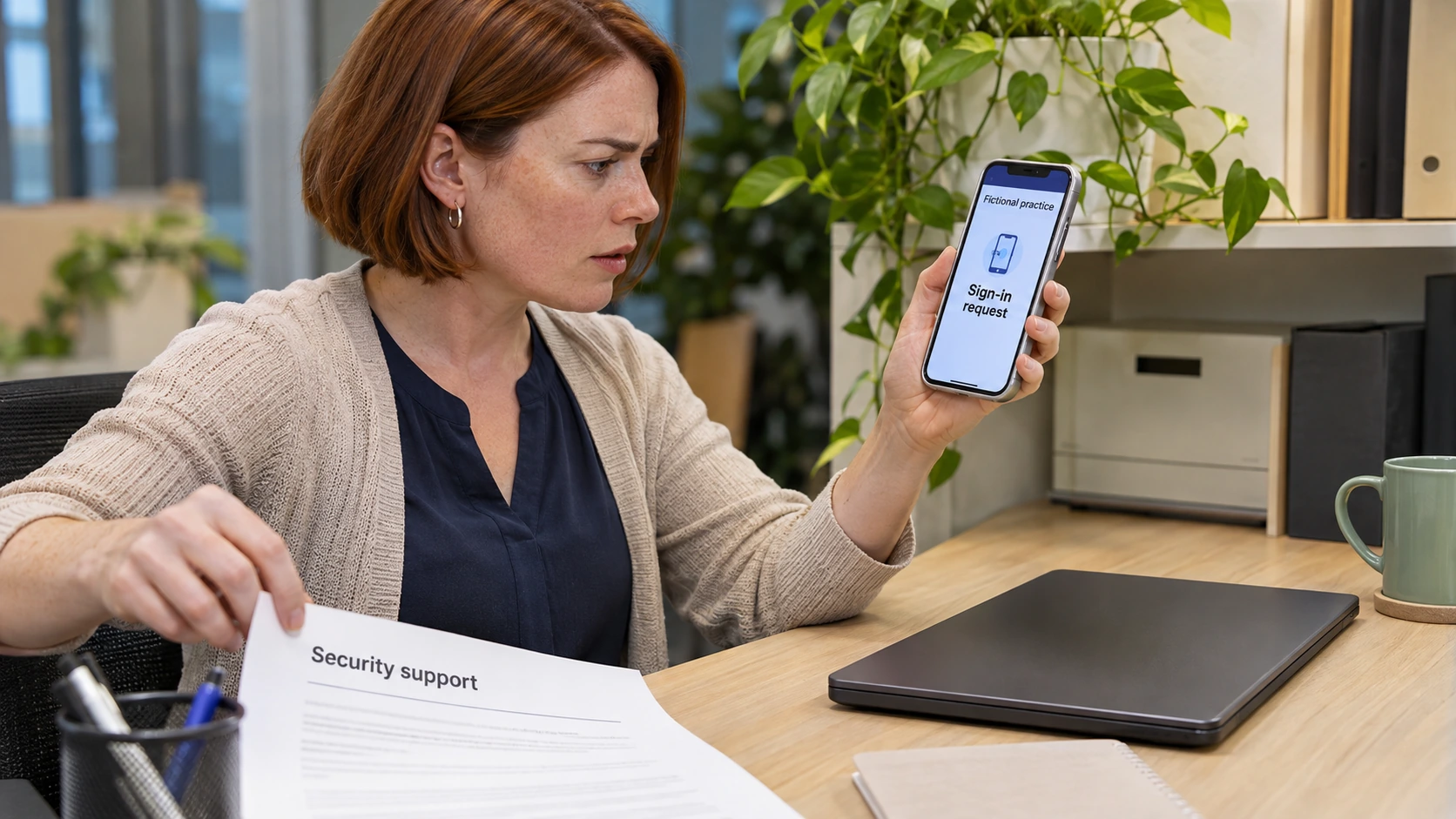
In this invented example, an employee receives an authentication request when they are not trying to sign in. They do not approve it to make the notification disappear. They follow the organisation’s security reporting process and provide the relevant time and account information through the approved channel.
The support team determines what checks or protective action are required. The employee does not assume the prompt proves a particular person has accessed the account, and they do not share a code with someone who calls claiming to be support.
Prepare for a changed or unavailable device
Before replacing a device, ask the authorised support team how the existing authentication arrangement will be transferred or replaced. Follow its process rather than removing the old method first and hoping another will work.
If access is lost unexpectedly, use a verified support contact and the approved identity-check process. Do not ask a colleague to approve your sign-in through their account or provide their credentials as a temporary workaround.
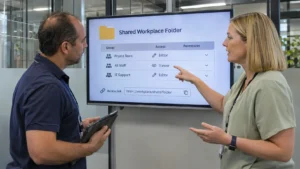
Keep any authorised backup or recovery material secure under the actual rules. A screenshot in an ordinary shared folder is not a suitable default.
Review access as responsibilities change
Update the arrangement through the appropriate process when accounts, devices or roles change. Check whether older methods need to be removed by the authorised owner.
Know how to report an unusual sign-in event promptly. A practical MFA setup combines an approved method with an understandable support and recovery pathway, helping staff recognise when a request does not match their own legitimate action.